> ## Documentation Index
> Fetch the complete documentation index at: https://docs.stenox.app/llms.txt
> Use this file to discover all available pages before exploring further.
# Installation
> Install Stenox and configure required permissions
"og:title": "Stenox Docs"
## Download Stenox
Visit [stenox.app/download](https://stenox.app/download) and download the latest version.
Locate the downloaded DMG file in your Downloads folder and double-click to open it.
Drag the Stenox app icon to your Applications folder.
Open Stenox from your Applications folder or Launchpad.
## Required Permissions
Stenox requires two system permissions to function properly.
### Microphone Access
Stenox needs microphone access to capture your voice.
**You'll be prompted automatically on first launch:**
1. Click **OK** when the microphone permission dialog appears
2. If you accidentally deny access, go to **System Settings → Privacy & Security → Microphone**
3. Enable the toggle next to Stenox
### Accessibility Access
Stenox uses Accessibility API to insert text at your cursor position.
The Stenox onboarding wizard will guide you to System Settings.
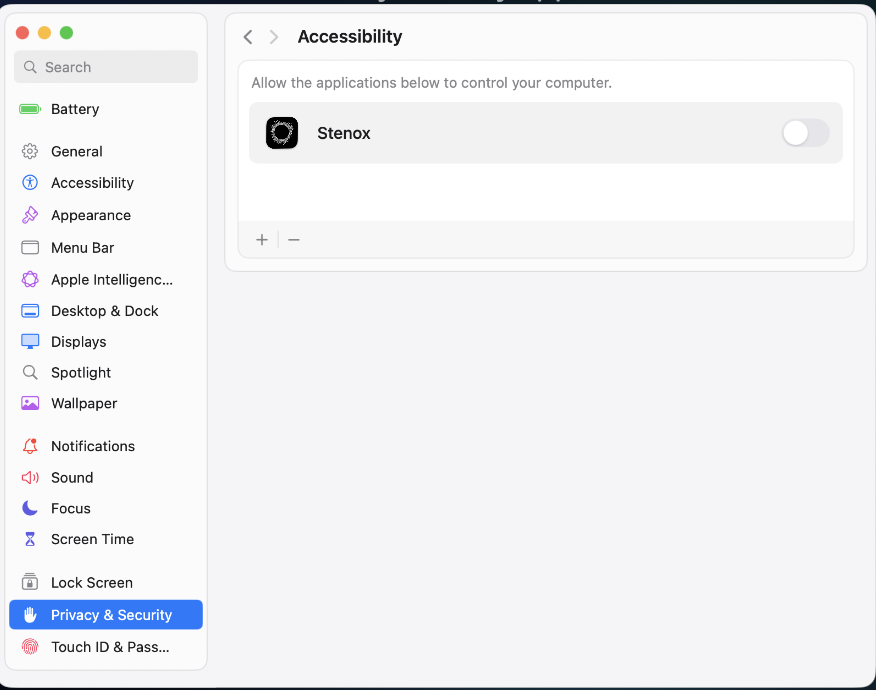
Go to **Privacy & Security → Accessibility** in System Settings.
Click the lock icon at the bottom left and authenticate with Touch ID or password.
Find Stenox in the list and toggle it on. If Stenox isn't listed, click the **+** button to add it.
Go back to Stenox and continue through the onboarding wizard.
Without Accessibility permission, Stenox cannot insert text into other applications. This permission is essential for core functionality.
## Initial Configuration
After granting permissions, you'll complete the onboarding wizard:
1. **Welcome Screen** - Overview of Stenox features
2. **Permission Setup** - Grant microphone and accessibility access
3. **Completion** - Learn about the default hotkey (Option+Space)
## What's Next?
Configure your first provider and learn the basics.
Step-by-step guide to your first voice dictation.
## Troubleshooting
* Make sure Stenox is running (check Activity Monitor)
* Restart Stenox
 Look for the Stenox icon in your menu bar (top-right of your screen, near the clock). Click it to access the app.
If the permission prompts don't appear automatically:
1. Open **System Settings → Privacy & Security → Accessibility**
2. Click the lock icon to make changes
3. If Stenox is in the list, **remove it** by selecting it and clicking the **−** button
4. Click the **+** button and add Stenox from your Applications folder
5. Ensure the toggle next to Stenox is **enabled**
Repeat for **Privacy & Security → Microphone** if needed.
Look for the Stenox icon in your menu bar (top-right of your screen, near the clock). Click it to access the app.
If the permission prompts don't appear automatically:
1. Open **System Settings → Privacy & Security → Accessibility**
2. Click the lock icon to make changes
3. If Stenox is in the list, **remove it** by selecting it and clicking the **−** button
4. Click the **+** button and add Stenox from your Applications folder
5. Ensure the toggle next to Stenox is **enabled**
Repeat for **Privacy & Security → Microphone** if needed.
 * Ensure you're running macOS 13.0 or later
* Try switching to a different transcription or AI provider in Settings
* If the issue persists, send us feedback directly from the app (see below)
**Contacting support is easy!** If the issue isn't with recording itself, go to **Settings → About → Send Feedback**. Simply record your feedback with your voice, and it will be transcribed and sent to us automatically. You can also use the feedback hotkey (**Right ⌘ + Right ⌥**) from anywhere.
Need more help? Visit our [Troubleshooting](/guides/troubleshooting) guide or email [support@stenox.app](mailto:support@stenox.app)
* Ensure you're running macOS 13.0 or later
* Try switching to a different transcription or AI provider in Settings
* If the issue persists, send us feedback directly from the app (see below)
**Contacting support is easy!** If the issue isn't with recording itself, go to **Settings → About → Send Feedback**. Simply record your feedback with your voice, and it will be transcribed and sent to us automatically. You can also use the feedback hotkey (**Right ⌘ + Right ⌥**) from anywhere.
Need more help? Visit our [Troubleshooting](/guides/troubleshooting) guide or email [support@stenox.app](mailto:support@stenox.app)